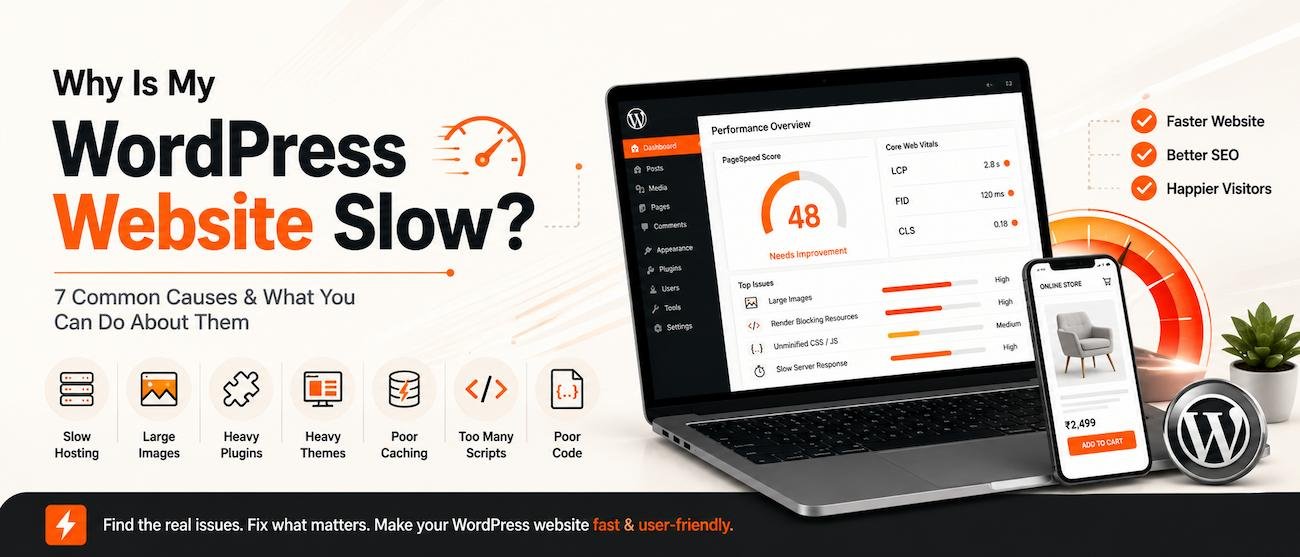
Why Is My WordPress Website Slow?
Is your WordPress website taking too long to load?
A slow website can frustrate visitors, hurt the mobile experience and make it harder for users to contact or buy from you. Google also considers page experience and Core Web Vitals as part of its broader search systems.
The good news is that WordPress itself usually isn’t the real problem.
Most slow WordPress websites have one or more performance issues involving hosting, images, plugins, themes, caching or custom code.
Let’s look at the most common causes of a slow WordPress website and what you can do about them. You can also use Google PageSpeed Insights and review Core Web Vitals guidance when diagnosing performance problems.
1. Your Hosting Is Too Slow
Your hosting server is the foundation of your website.
If the server takes too long to respond, even a well-designed website can feel slow.
Common signs
- Slow loading on every page
- High server response time
- Slow WordPress dashboard
- Website becomes slower during traffic spikes
What to do
Consider:
- Better quality hosting
- Managed WordPress hosting
- More server resources
- Server-side caching
- Proper PHP configuration
Important: Don’t spend hours optimizing images if your server itself is the bottleneck.
2. Your Images Are Too Large
Large images are one of the easiest ways to make a website unnecessarily heavy.
A single unoptimized hero image can be several megabytes.
Fix it by:
- Resizing images before uploading
- Compressing images
- Using WebP or AVIF where appropriate
- Avoiding oversized images
- Lazy-loading images below the initial viewport
For most business websites, properly optimized images can make a noticeable difference without changing the design.
3. You Have Too Many or Heavy Plugins
Plugins aren’t automatically bad.
The problem is that some plugins load large amounts of:
- CSS
- JavaScript
- Database queries
- External resources
A poorly developed plugin can affect performance more than several lightweight plugins combined.
Check your plugins
Ask:
Do I actually need this plugin?
Also remove:
- Unused plugins
- Duplicate functionality
- Outdated plugins
- Plugins doing things your theme or custom code already handles
Avoid installing multiple optimization plugins to fix problems caused by other plugins.
4. Your Theme or Page Builder Is Too Heavy
Some WordPress themes and page builders add much more code than your website actually needs.
This can lead to:
- Large CSS files
- Excessive JavaScript
- Too many page elements
- Large DOM structures
- Slower mobile performance
What can help?
Review:
- Unused widgets
- Animations
- Sliders
- Extra libraries
- Unnecessary page-builder elements
- Theme features you don’t use
A simpler website structure can sometimes improve performance more than adding another optimization plugin.
5. Caching Isn’t Configured Properly
Without effective caching, WordPress may repeatedly process PHP and database requests for visitors.
Caching allows frequently requested content to be delivered more efficiently.
Depending on your hosting setup, you may use:
- Page caching
- Browser caching
- Object caching
- Server-level caching
Popular WordPress caching and optimization tools include solutions such as LiteSpeed Cache, WP Super Cache and WP-Optimize. (wordpress.org)
But remember:
More caching plugins does not mean more speed.
Usually, one properly configured solution is better than several overlapping ones.
6. JavaScript and Third-Party Scripts Are Slowing You Down
Modern websites often contain scripts for:
- Analytics
- Meta Pixel
- Chat widgets
- Maps
- Social feeds
- Popups
- Advertising
- Booking systems
Each additional script can add network requests and processing time.
Improve this by:
- Removing scripts you don’t need
- Deferring non-critical JavaScript
- Delaying third-party scripts where appropriate
- Loading scripts only on pages that need them
For example, there’s little reason to load a booking-system script on every page if only one page actually uses the booking system.
7. Your Website Has Poorly Optimized Custom Code
This is particularly important for custom WordPress websites.
Performance problems can come from:
- Inefficient database queries
- Excessive AJAX requests
- Poorly written PHP
- Unnecessary API calls
- Heavy custom functionality
- Too many database operations
These issues aren’t always solved with a cache plugin.
Sometimes the actual code needs to be examined.
That’s one reason performance should be considered during development, not only after launch.
How to Find What’s Making Your Website Slow
Don’t start changing everything at once.
Use a simple process:
Step 1: Test your website
Use Google PageSpeed Insights, Chrome DevTools or another performance testing tool.
Step 2: Check mobile
A website that feels fast on your desktop may be slow on a mobile connection.
Step 3: Look at the biggest resources
Check for:
- Large images
- JavaScript
- CSS
- Fonts
- Videos
- Third-party scripts
Step 4: Check server response
If the server takes too long to respond, investigate your hosting.
Step 5: Fix the biggest problem first
Don’t spend time optimizing a tiny CSS file while your homepage is loading a 5 MB image.
What About Core Web Vitals?
Core Web Vitals focus on important aspects of the real user experience, including:
- Loading
- Interactivity
- Visual stability
They’re an important part of modern website performance.
We already have a dedicated Core Web Vitals guide on Web Developer’s Hub, so you can use that article for a deeper explanation and keep this article focused on diagnosing slow WordPress websites.
Can a Speed Plugin Fix Everything?
No.
A performance plugin can help with:
Caching
Image optimization
CSS/JavaScript optimization
Lazy loading
Database cleanup
But it won’t automatically fix:
- Bad hosting
- Poorly coded plugins
- Heavy themes
- Slow custom queries
- Excessive third-party scripts
- Poor website architecture
Think of optimization plugins as tools, not a complete performance strategy.
Quick WordPress Speed Checklist
Before calling your website optimized, check:
- Good-quality hosting
- Page caching enabled
- Images compressed
- WebP/AVIF used where appropriate
- Unnecessary plugins removed
- Theme/page-builder assets reviewed
- Unnecessary JavaScript removed
- Third-party scripts minimized
- Fonts optimized
- Database maintained
- WordPress and plugins updated
- Mobile performance tested
- Core Web Vitals monitored
When Should You Get Professional WordPress Speed Optimization?
Consider professional help when:
- Your site is still slow after basic optimization
- PageSpeed results remain poor
- Server response is slow
- WooCommerce pages are struggling
- Your website has many plugins
- You have custom functionality
- Your site relies on multiple APIs or third-party tools
- You don’t know what’s causing the bottleneck
The goal shouldn’t be to make a PageSpeed score look good just for the sake of the number.
The goal is to make the actual website faster and easier to use.
Web Developer’s Hub provides WordPress development, website speed optimization, Core Web Vitals improvements and performance-focused development for businesses in Delhi NCR and beyond.
Instead of applying random fixes, we can identify the actual bottlenecks affecting your website and prioritize the changes that matter.
Get in touch with Web Developer’s HubFrequently Asked Questions
Why is my WordPress website suddenly slow?
Common reasons include a hosting problem, new plugins, large images, additional scripts, database growth, theme changes or third-party integrations. Test the website before changing multiple settings at once.
Does having too many WordPress plugins make a website slow?
It can, but the number of plugins alone doesn’t determine performance. Poorly coded or resource-heavy plugins can have a much larger impact than several lightweight plugins.
Can caching make WordPress faster?
Yes. Caching can reduce the amount of work required to generate and deliver pages. However, caching does not fix every performance problem.
Does a slow website affect SEO?
Website performance can influence page experience and user experience, and it should be treated as part of a broader technical SEO strategy. However, improving speed alone doesn’t guarantee higher rankings.
How do I make my WordPress website faster?
Start by measuring performance, then investigate hosting, caching, images, plugins, theme assets, JavaScript, database queries and third-party scripts. Fix the biggest bottleneck first.
Can WordPress websites be fast?
Absolutely. WordPress can be built and optimized to perform well. The result depends heavily on hosting, theme quality, plugins, implementation, content and ongoing maintenance.
Final Takeaway
A slow WordPress website is usually caused by one or several specific performance problems, not WordPress itself.
Start by checking:
Hosting → Images → Plugins → Theme → Caching → JavaScript → Custom Code
Measure before making changes, and fix the biggest bottleneck first.
A fast website isn’t just about getting a better performance score. It creates a better experience for visitors and gives your business a stronger technical foundation for SEO, conversions and growth.